
IDE tour
The OculiX IDE is the visible face of the project. It’s where you record, edit, and run scripts. This page walks through every panel and what it does.
Launch
Section titled “Launch”java -jar oculixide-3.0.3.jarOr double-click the JAR. On launch you briefly see the splash:
Then the main window opens on the Welcome tab.
Layout
Section titled “Layout”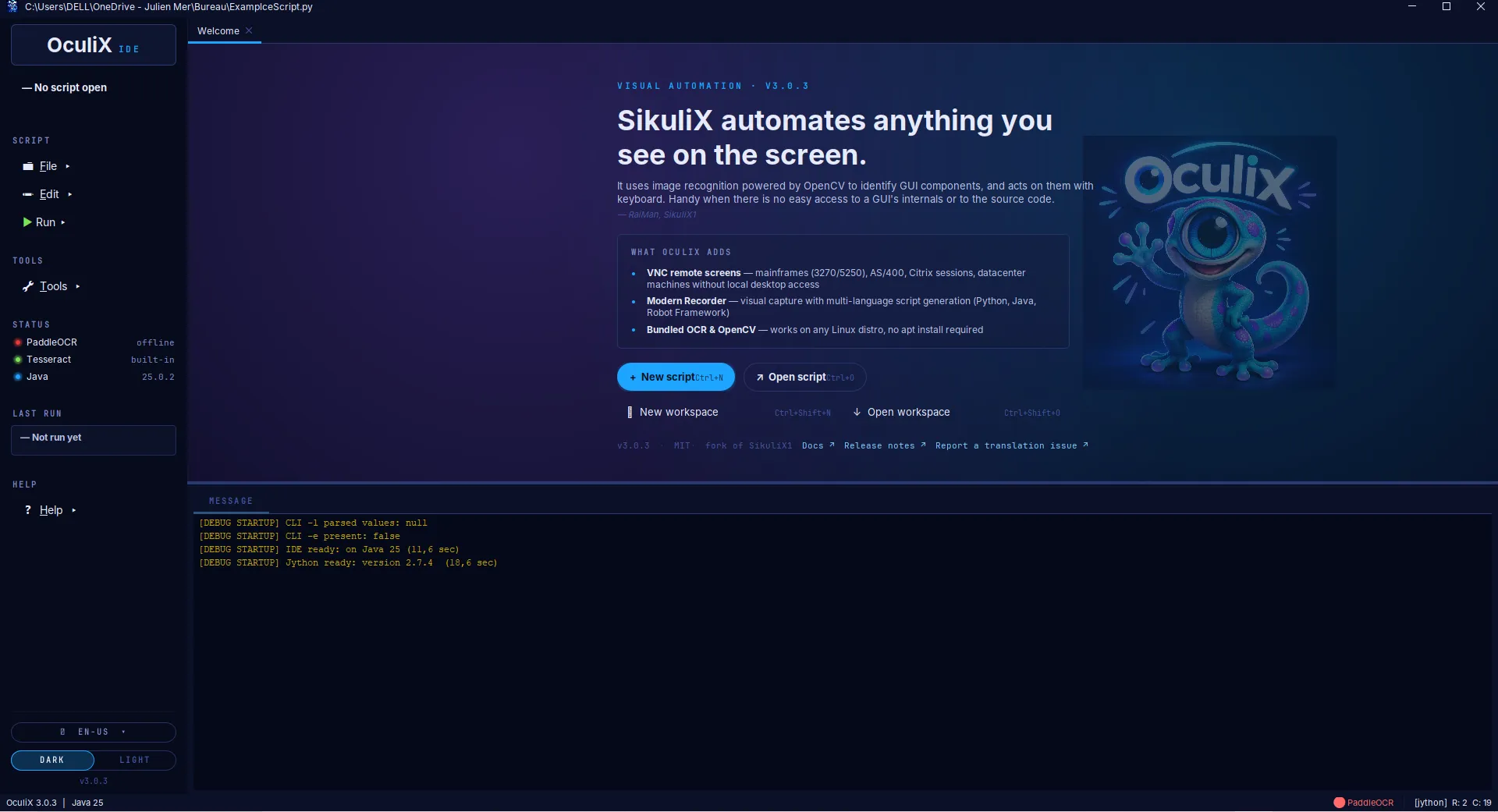
Five distinct zones:
| Zone | Role |
|---|---|
| Left sidebar | Project info, Script / Tools menus, live Status panel, Last run, theme switch |
| Workspace | Tabs of open scripts, with file path in the title bar |
| Editor | The actual script editing area, with inline image thumbnails |
| Message | The bottom console — debug / info / error logs |
| Status bar | Version, Java version, OCR engine status, current cursor position |
Welcome tab
Section titled “Welcome tab”On first launch (or when you close all editor tabs), OculiX opens the Welcome tab:
- A short pitch lifted from RaiMan’s original SikuliX description — “automates anything you see on the screen”
- A What OculiX adds panel listing the project’s distinctive additions (VNC remote screens, Modern Recorder, bundled OCR & OpenCV)
- Buttons for New script (Ctrl+N), Open script (Ctrl+O), New workspace (Ctrl+Shift+N), Open workspace (Ctrl+Shift+O)
- A footer with
v3.0.3,MIT,fork of SikuliX1, and quick links to Docs, Release notes, and translation issue reporting
The Welcome tab handles missing-context cases safely (no NPE on empty workspace, no image-ratio glitches).
Workspace
Section titled “Workspace”A workspace is a directory that holds your scripts. OculiX remembers the last workspace and re-opens it on launch.
- File → New Workspace… creates an empty workspace.
- File → Open Workspace… points OculiX at an existing folder of
.sikulibundles. - File → Rename Workspace… renames it on disk and updates the cards.
- The workspace panel auto-refreshes when you create, rename, or delete a script from the file system.
Each script appears as a card with its name, image count, and status (idle, running, error). Click to open it.
Script editor with inline image thumbnails
Section titled “Script editor with inline image thumbnails”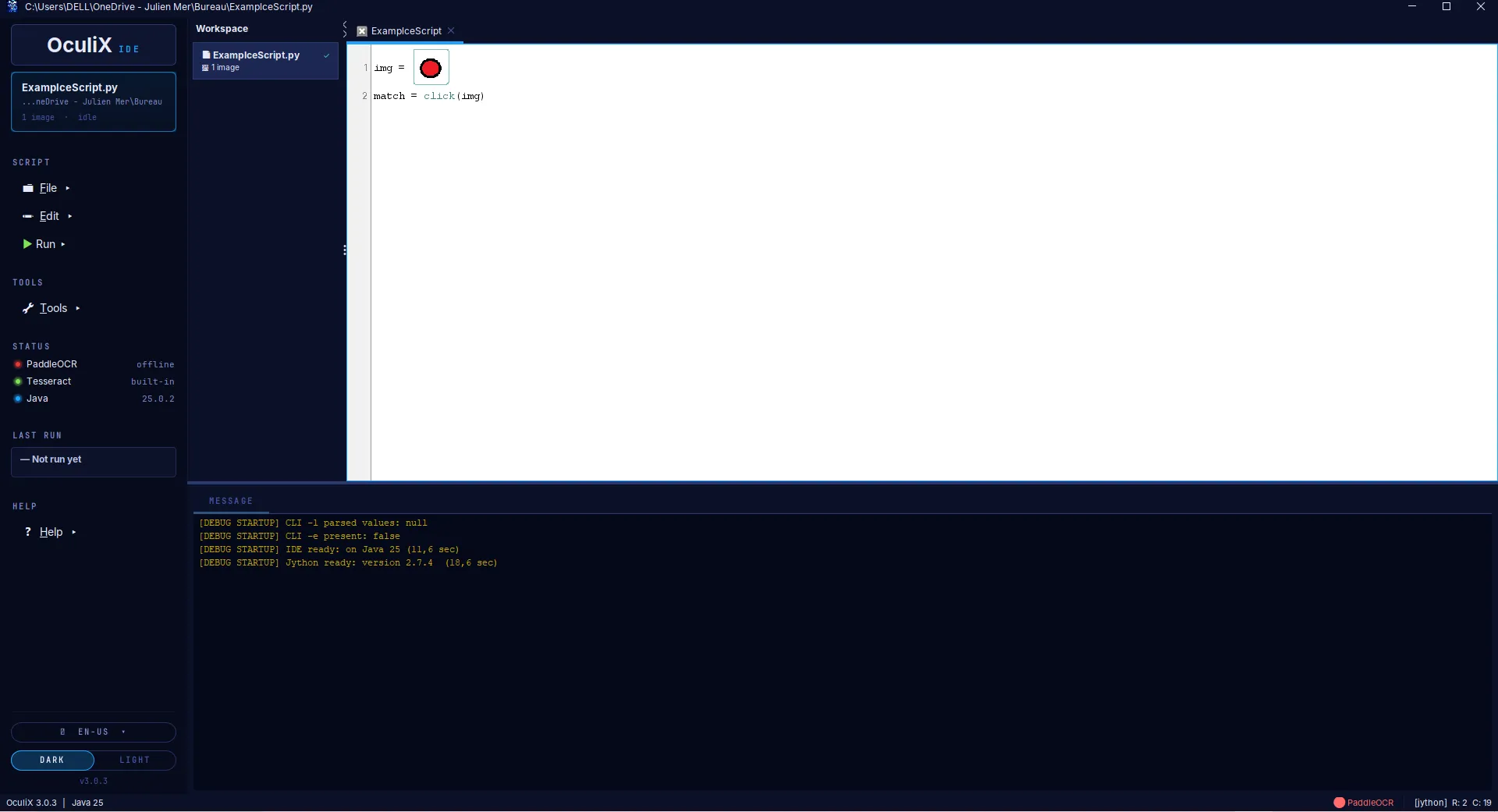
This is one of OculiX’s signature features. Captured images live inline in the code:
img = (thumbnail rendered here)match = click(img)When you click a thumbnail, the IDE lets you re-capture or replace it. The image file lives in the .sikuli bundle next to the script — you can rename, version, or share it like any other asset.
The editor supports:
- Syntax highlighting (theme-aware, dark and light)
- Inline image thumbnails for every captured image reference
Cmd/Ctrl + Rto runCmd/Ctrl + Sto save- Shift + Alt + C to kill any running script — even one stuck in a
while Trueloop
Sidebar — live info panels
Section titled “Sidebar — live info panels”The left sidebar is more than a menu. It surfaces live information about the current state:
Project block
Section titled “Project block”The project block shows the current script name, its path (truncated to fit), and quick stats — image count and runtime status (idle / running / error).
Script / Tools / Help menus
Section titled “Script / Tools / Help menus”Three flat dropdown menus:
- Script — File, Edit, Run
- Tools — Modern Recorder, OCR settings, VNC connect, ADB connect
- Help — Welcome tab, About, Open docs
Status panel
Section titled “Status panel”Real-time engine status:
- PaddleOCR —
offline/online. Green dot when the localhost:5000 server responds. - Tesseract —
built-in. Always green (it ships with the JAR). - Java — the JVM version currently running OculiX.
Last run
Section titled “Last run”Time, duration, and exit status of the most recent script execution. — Not run yet before the first run.
Theme switcher
Section titled “Theme switcher”A pill toggle at the bottom: DARK / LIGHT. Choice persists across launches.
Modern Recorder
Section titled “Modern Recorder”OculiX has two ways to turn on-screen actions into a script, and they work very differently — don’t mix them up:
| 🔴 Record (live) | 🟢 Modern Recorder (assisted) | |
|---|---|---|
| Where | Toolbar Record button, or Tools → 🔴 Record | Tools → 🟢 Modern Recorder |
| How it works | Captures your real clicks, drags and scrolls as you perform them | You add actions one at a time from a panel |
| Best for | Quickly capturing a flow you can already do by hand | Precise image / OCR-text / VNC actions, edited as you go |
| How you finish | Press the global Stop hotkey | Click Insert & Close |
This section covers the Modern Recorder; the live Record button has its own section in Live Recorder below.
The Modern Recorder is the easiest way to build a script if you’ve never written one before. Open it from Tools → 🟢 Modern Recorder.
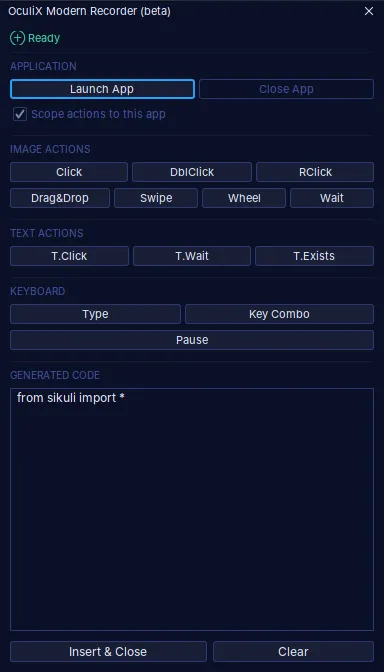
The Recorder is organized in five sections:
| Section | Buttons |
|---|---|
| Application | Launch App · Close App · Scope actions to this app |
| Image actions | Click · DblClick · RClick · Drag&Drop · Swipe · Wheel · Wait |
| Text actions | T.Click · T.Wait · T.Exists (OCR-driven) |
| Keyboard | Type · Key Combo · Pause |
| Generated code | Live preview of the Python lines being built |
You pick a button, capture or browse for the image (for image actions) or type the text (for text actions), and the corresponding line is appended to the Generated code box. When you click Insert & Close, the images are copied into the active .sikuli bundle and the generated lines are inserted at the cursor in the editor.
The Recorder also maintains an image library so you can reuse the same capture across actions without re-capturing every time.
How a recording session actually works
Section titled “How a recording session actually works”The Modern Recorder is an assisted action builder — unlike the live Record button (Live Recorder below), it never captures your clicks in the background. You add each action yourself and watch the script grow, line by line, in Generated code. A typical session:
- (Optional) Application —
Launch App,Close App, andScope actions to this appare helpers to start or target a specific window. They are optional: if you just want to add an action, skip straight to step 2. - Pick an action — e.g. Click. For an image action, OculiX asks where the image comes from: Capture, Browse…, or (once you’ve captured at least one) the library.
- Capture — when you choose Capture, the Recorder and the whole IDE hide so they’re out of the way, and the screen switches to the capture overlay. Drag a rectangle around the target on your real screen (or press
Escto cancel). The windows come straight back, you name the image, and the line — e.g.click("target.png")— appears in Generated code.
Finishing a recording
Section titled “Finishing a recording”There is no Stop button — nothing is recording in the background, so there’s nothing to stop. You’re done when the Generated code box holds the lines you want:
- Insert & Close — copies the images into the active
.sikulibundle and drops the generated lines into your script at the cursor. - Clear — discards the generated lines so you can start over.
Live Recorder
Section titled “Live Recorder”The classic SikuliX recorder is still here — the red Record button (🔴) on the toolbar, also under Tools → 🔴 Record. Unlike the Modern Recorder, it captures your actual actions as you perform them and turns them into image-based steps automatically:
- Click Record. The IDE hides itself so it’s out of the way.
- Perform your actions on screen. Mouse clicks, double-clicks, right-clicks, drag-and-drop and the scroll wheel are recorded. For each one, OculiX takes a screenshot and uses OpenCV to auto-crop the target image around the cursor — you never draw a capture rectangle yourself. It also raises the match similarity when the target appears more than once, and prepends a
wait()when the target wasn’t on screen before you moved to it. (Keyboard input is not captured by the live recorder — add typing through the Modern Recorder or by hand.) - Press the global Stop hotkey to finish. The IDE comes back and the events are compiled into script lines —
click(...),doubleClick(...),rightClick(...),dragDrop(...),wheel(...)— and inserted into your editor.
Two things to know before you start:
- The IDE disappears on purpose — same as the Modern Recorder’s Capture step, it gets out of the way of what you’re pointing at.
- There is no on-screen Stop button while recording. The only way to end the session is the global Stop hotkey. The Record button’s tooltip shows the exact combo (Shift + Alt + C by default) — note it before you click Record, because once the IDE is hidden the reminder is gone.
Message console
Section titled “Message console”The bottom panel is a unified log:
- info for normal script output (
printstatements land here) - debug for OculiX internals when
Settings.DebugLogs = True - error for stack traces and
FindFailed - Startup logs include parsed CLI flags, JVM version, and Jython version
- Right-click → Clear / Copy / Save log…
The console is theme-aware: the colors switch with the IDE theme.
File menu — at a glance
Section titled “File menu — at a glance”| Item | Shortcut | What it does |
|---|---|---|
| New Script | Ctrl/Cmd + N | Create a new .sikuli bundle |
| Open Script… | Ctrl/Cmd + O | Open an existing bundle |
| New Workspace… | Ctrl/Cmd + Shift + N | Create an empty workspace directory |
| Open Workspace… | Ctrl/Cmd + Shift + O | Open an existing workspace |
| Save | Ctrl/Cmd + S | Save the current script |
| Save As… | Save under a new name in the workspace | |
| Exit | Ctrl/Cmd + Q | Close the IDE (saves session) |
Run menu
Section titled “Run menu”- Run (▶) — execute the current script
- Run Slow Motion — visualize each match with a brief highlight before clicking
- Stop — stop the current script
- Kill switch (
Shift + Alt + C) — emergency abort, available globally
Recovery
Section titled “Recovery”If the IDE crashes mid-edit, your work isn’t lost. OculiX writes an auto-save under ~/.OculiX/recovery/ every few seconds and restores it on next launch via the Welcome tab.
What’s next
Section titled “What’s next”- Write your first script step by step
- The full visual-matching guide
- The CLI reference — running scripts without the IDE